Job allocation
Separate material performance between different kinds of work in the same project.

Material costs
A supplier invoice tells you what was bought. ActualCost adds the project and job context needed to understand profitability.
Material entries can include a date, description, quantity, unit, cost excluding VAT, invoice number, project, job and notes. Entries remain editable and deletable when a source document or allocation needs correction.
Material budget left = estimated materials − actual material cost
The job list keeps the estimate and accumulated cost visible together. Optional colour signals make positive and negative remaining allowances easier to scan.
Separate material performance between different kinds of work in the same project.
Keep a practical link back to the source invoice without requiring invoice-level accounting.
Record the cost basis used for ActualCost’s current construction-profit workflow.
Edit or delete an entry when the original allocation was wrong.
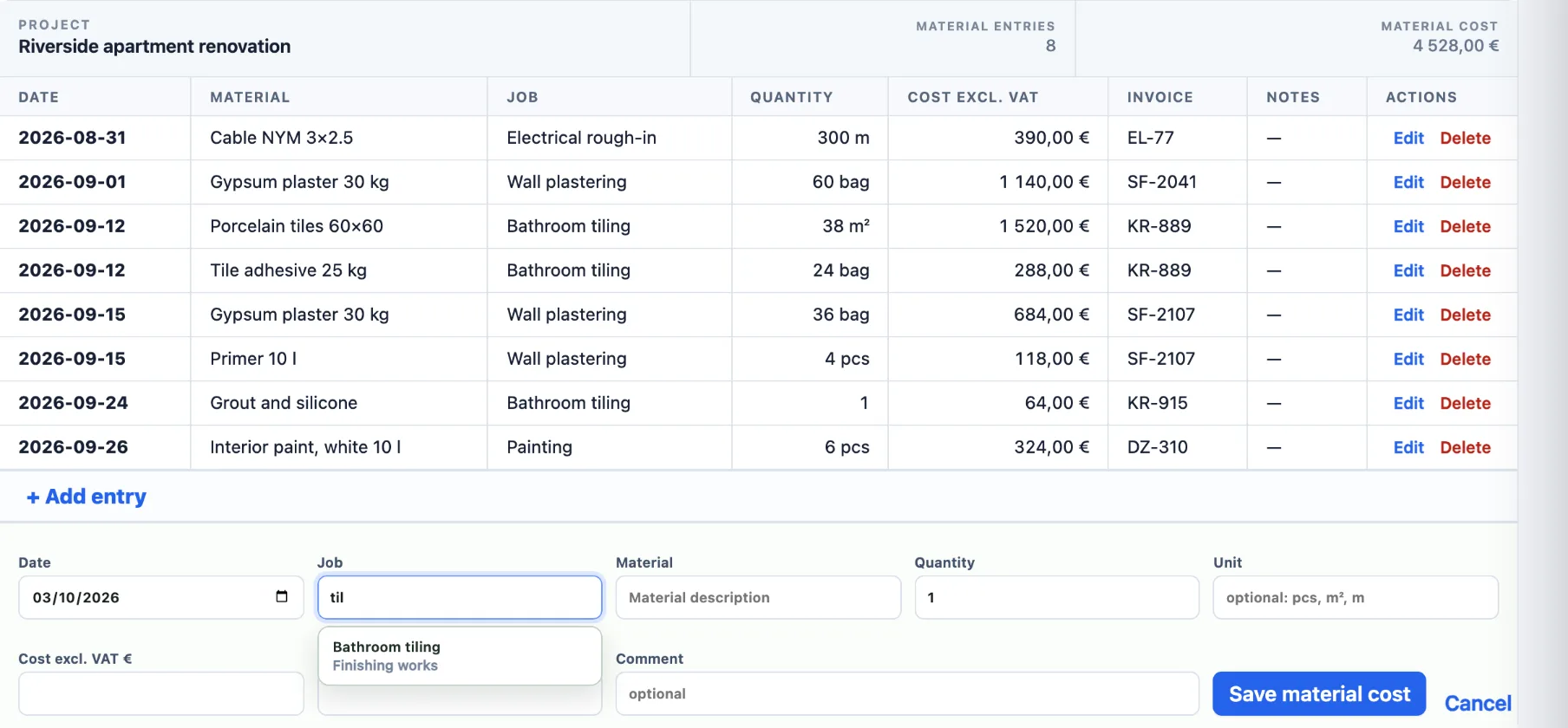
The demo project estimated 1 900 € of materials for Wall plastering. Three purchases have been entered against that job:
| Purchase | Invoice | Cost excl. VAT |
|---|---|---|
| Gypsum plaster 30 kg, 60 bags | SF-2041 | 1 140,00 € |
| Gypsum plaster 30 kg, 36 bags | SF-2107 | 684,00 € |
| Primer 10 l, 4 pcs | SF-2107 | 118,00 € |
| Total | 1 942,00 € |
Material budget left: 1 900 € − 1 942 € = −42 €. Together with the labour overrun on the same job, it is a clear signal to check the quantities in the estimate before pricing similar work again.
Enter material costs at the level of detail that suits you. For a quick weekly routine, enter one line per invoice and job: quantity 1, the invoice total without VAT as the cost and the invoice number. When an invoice covers several jobs, split it into one line per job.
After saving, the form stays open for the next line of the same project.
Without VAT. ActualCost compares costs with estimates and billed amounts excluding VAT, so profit is not distorted by tax that you reclaim.
No. Many companies enter one line per invoice and job: quantity 1, the invoice total excluding VAT as the cost, and the invoice number for reference. Enter individual items only where the detail is useful.
Enter one line per job, each with that job’s share of the total and the same invoice number. Job-level profit is only accurate when each cost is attached to the right job.
Yes. Edit the entry to move it to another job or change the amount, or delete it. Deletes can be undone for a short time.
Not at the moment. Material costs are entered by hand in a short form; the invoice number keeps the link to your accounting records.
Apply for early access to ActualCost.